
Convert images to PDF with scale and orientation control
Decide on page layout first
A PDF is useful when a recipient needs several pictures in one ordered document. Decide whether you want standard A4 pages or pages sized to the images. Choose the layout for the reader’s use, not just the smallest possible output.
This walkthrough uses JPG and PNG samples. The current tool also accepts WebP, HEIC and GIF; animated input is used as a still frame. For another format, prepare a supported copy first. Keep the originals so that you can revise the order or layout without repeatedly converting an already converted file.
Build the document
- Open Image to PDF and choose the JPG or PNG images to include.
- Use the selected-file ordering controls to arrange the pages.
- Choose A4 or image-sized pages. For A4, review orientation and the image scale setting.
- Start processing, download the PDF and open it in a viewer to inspect every page.
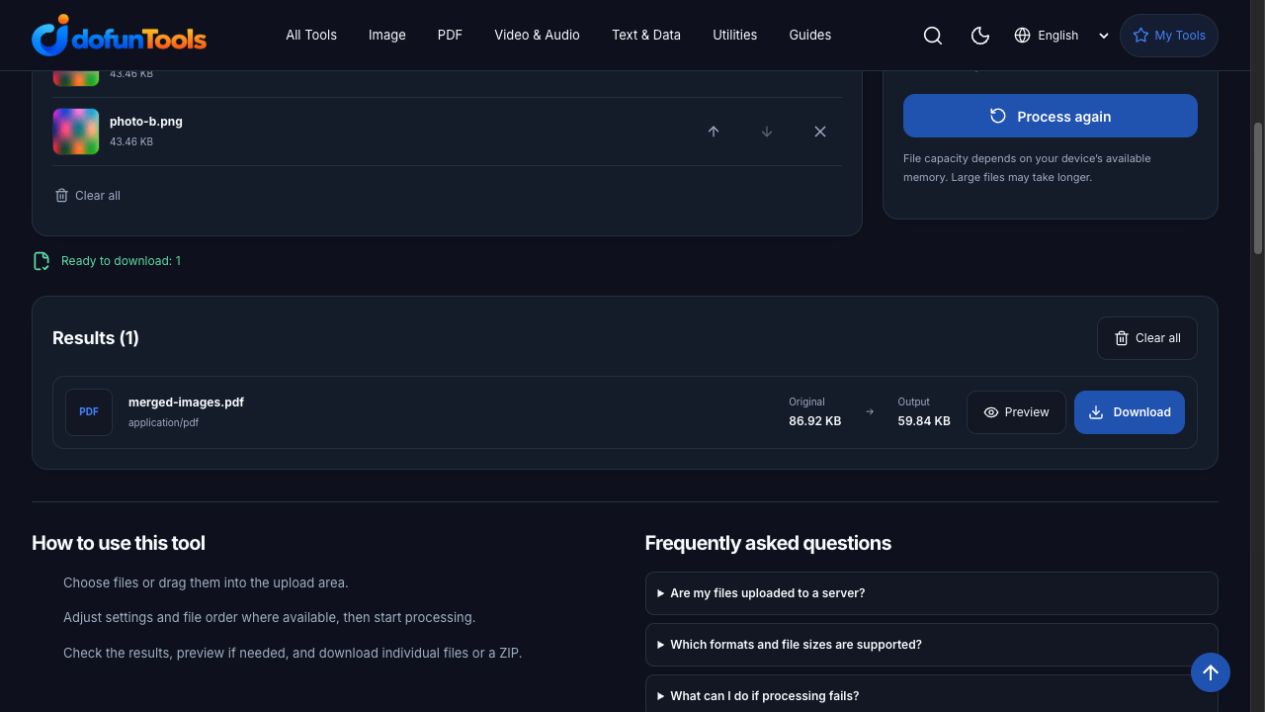
The screenshot uses the English interface. It shows an actual browser workflow, not a document quality or size guarantee.
Repeat the checked conversion
Use PNG pattern A and PNG pattern B in that order. Choose A4, Portrait and Scale 100. Our browser run produced a two-page PDF; both pages measured approximately 595.28 × 841.89 PDF points, consistent with A4 portrait. Review the pictures in a viewer as well as checking those dimensions.
Choose between A4 and image-sized pages
A4 gives a standard sheet size. Portrait or landscape orientation changes the available layout, and image scale changes the space the picture occupies on that sheet. Check margins and whether small writing is still readable when viewed or printed.
Image-sized pages follow the input dimensions and can produce a document whose pages have different shapes. That can be useful for viewing pictures, but may be less convenient when a recipient expects uniform printable sheets.
Inspect order, readability and file size
Look at the first page, the last page and any page whose image shape differs from the others. For a simple set of two accepted images, verify that the downloaded PDF contains two pages in the intended order. Page count is an extra check, not a substitute for inspecting the pages themselves.
A photo of text is still an image after this conversion; no searchable text layer is promised. A PDF container also does not guarantee a smaller file than the source images. Check the actual output size before sending it.
Troubleshoot unsuitable input or layout
If a picture fails to load, try a readable JPG or PNG copy and retry the conversion. Adjust A4 orientation or scale if the result is too small on the page. Use Resize Image when the input dimensions need attention, and Merge PDF if the finished document needs to be joined with an existing PDF.
Processing uses browser resources on this device. Large input sets can run out of memory, so begin with a small batch and keep your source files.
Frequently asked questions
Does the order of the images determine the page order?
Yes. Arrange the selected images before processing, then check the first and last pages of the downloaded document.
Is the text in a photo automatically searchable?
No. Putting images into a PDF is not the same as running OCR. This workflow does not promise a searchable text layer.
Can a PDF be larger than its source images?
Yes. Page layout and image encoding affect the final size. Compare the actual file rather than assuming that PDF conversion compresses it.