
Extract specific pages from a PDF file
Choose pages by their position
Open the source PDF and count pages by their position in the document, starting at 1. A printed page label is not necessarily the same as its position: a cover and introductory pages can shift the numbering.
This tool creates one PDF containing the selected pages. It does not automatically create a ZIP with one PDF per page, and it does not redact text from the pages you retain.
Enter page numbers or ranges
- Open Split PDF and choose a readable PDF.
- Enter one-based page numbers or ranges in the page selection field, such as 1,3-5.
- Start processing and wait for the extracted PDF.
- Download it and verify each included page against the original.
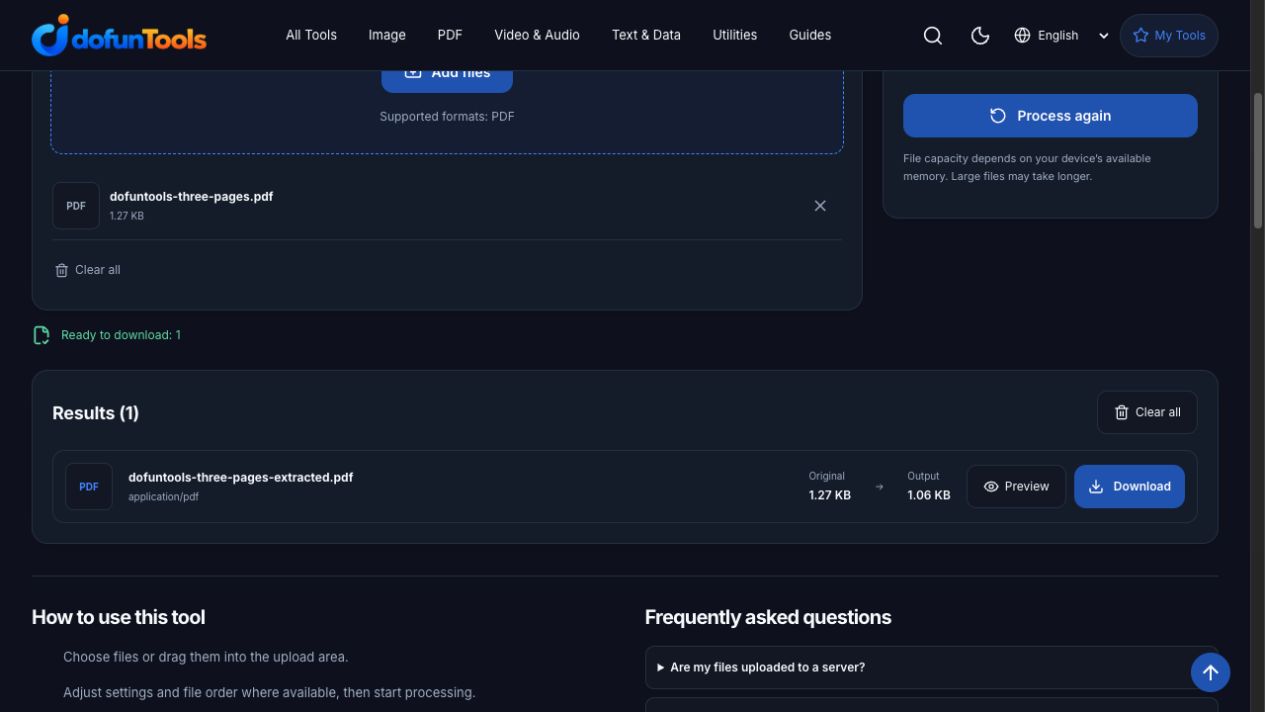
The screenshot uses the English interface. A local three-page test document provides a reproducible example; the operation does not depend on the printed page labels.
Repeat the checked extraction
Download the three-page PDF sample and enter 1,3. Our downloaded output contained two pages, matching the source’s first and third page content streams. This verifies a selection into one output file; it does not demonstrate automatic separate-file export.
A small selection example
For a three-page document, entering 1,3 selects the first and third pages and produces one two-page PDF. The source file remains unchanged. To save three separate PDFs, run three extractions with 1, then 2, then 3 and download each result separately.
Leaving the field empty keeps all pages. A range that matches no valid pages produces an error. The safest way to check a selection is to compare both the output page count and the actual page content.
Know what extraction does not remove
Removing unwanted pages is different from hiding sensitive content on a retained page. If a page contains information you cannot share, simply extracting that page does not remove that information. Inspect the saved document before sending it.
Do not assume that advanced document features, such as forms or signatures, keep their original behavior after page extraction. Use a viewer to check the final file.
Recover from an error or wrong selection
Confirm that the PDF opens normally and check its page count. An encrypted or damaged input may need a readable copy you are authorized to modify. Retry with explicit valid page numbers. If you need to combine the extracted pages with another document, use Merge PDF after verifying the extraction.
Processing happens on this device and is limited by browser memory and supported document features. Keep your original as the reference until you finish checking the output.
Frequently asked questions
Does this create a separate file for every page?
No. The current implementation saves the selected pages together in one new PDF. To make individual files, run the tool separately for each page.
What does an empty page selection do?
An empty range keeps all pages. Enter an explicit page or range when you want only part of the document.
Why did my selection fail?
A selection matching no valid pages produces an error. Check the source page count and use one-based page numbers, then inspect the output.