
Compress one or multiple images at once.
Start with the attachment requirement
Check the recipient’s attachment limit before editing. If you have several photos, leave room for the message and other attachments. For photographs, a JPG copy is often practical; if a screenshot needs crisp text or transparency, compare its output more carefully rather than assuming the same setting suits every image.
Keep your original file. Use a copy when you need a full-resolution version later. This workflow changes a file for sending; it does not change the original stored on your device.
Compress a copy in the browser
- Open Compress Image and choose a JPG, PNG or WebP photo. HEIC is also accepted, with a separate conversion step inside the workflow.
- Start with Quality 80 and a target size of 1MB, the current defaults. Use the size target that suits the recipient’s requirement.
- Select Start processing. Wait until the result area reports success or explains a failure.
- Check the displayed sizes, preview the image and download the result. Attach the downloaded copy to your email.
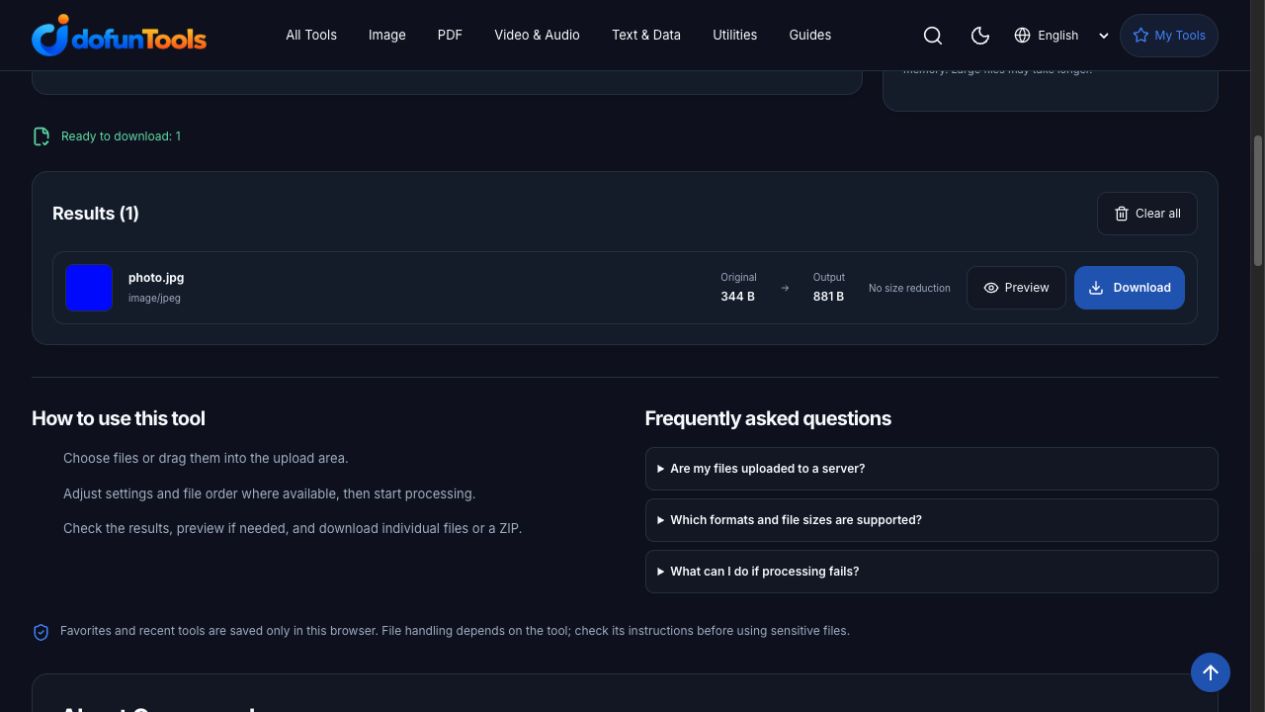
The screenshot uses the English interface. The same controls are available after selecting Chinese. It is an operation example, not a promise of a particular reduction for your files.
A reproducible small-file check
Download the tiny JPG sample to repeat our test. It is a synthetic 160 × 120 image, not a representative camera photo. With Quality 80 and target 1MB, our browser run changed 344 bytes into 881 bytes: the file grew. The screenshot reports No size reduction. This illustrates why you should compare actual results; it is not a benchmark for your images.

Check both appearance and dimensions
Inspect faces, fine text and edges at a useful viewing size. A smaller byte count alone does not mean the result is suitable. If the image is too soft, increase quality and process the original again. If you can accept fewer pixels, use Resize Image before another comparison.
The current compressor caps the longest edge at 1920 pixels. Quality starts at 80, but this is an initial encoder setting rather than a visual-quality score. Do not use this workflow when retaining the original pixel dimensions above that cap is essential.
If the result misses the target
Try a smaller image dimension or a lower quality setting and inspect the new output. A file already encoded efficiently may change little. Never describe a chosen target as a guaranteed final size. If the whole email is too large, reducing a single image may not be enough.
Handling and troubleshooting
The selected file is processed on this device; processing libraries may be downloaded separately. A large file or unsupported encoding can still fail. Retry a smaller supported sample, and do not infer that a partial batch succeeded for every image. The processing explanation distinguishes file processing from resource downloads.
Frequently asked questions
Does compression keep the original quality?
Re-encoding a JPG can change image detail. Compare the downloaded result at the size you will use; a quality setting is not a guarantee of lossless output.
Will every photo become smaller than 1MB?
No. The size field is a target. Dimensions, format and image content affect the actual result. Check the downloaded file size before attaching it.
Can I compress several photos?
Yes. Add multiple accepted images, check each result and use the ZIP action when it is offered. An email attachment limit applies to the total message, not just one image.