
Resize one or multiple images at once.
Decide which size you actually need
A requirement such as 800 pixels wide describes dimensions. A requirement such as less than 1MB describes file size. Use resizing to meet a dimension requirement, then check the bytes separately. Enlarging a small original does not recreate detail that was never recorded.
If a destination requires an exact shape, decide whether cropping is acceptable. A wide photo cannot fill a square while preserving every part and its original proportions unless you add margins or choose a different layout.
Resize while keeping proportions
- Open Resize Image and choose a supported image.
- Choose Pixels for a specific width or height, or Percentage for a proportional change.
- Keep Maintain aspect ratio enabled. In pixel mode, choose the dimension to control and enter its target value.
- Start processing, download the output and inspect its dimensions and appearance.
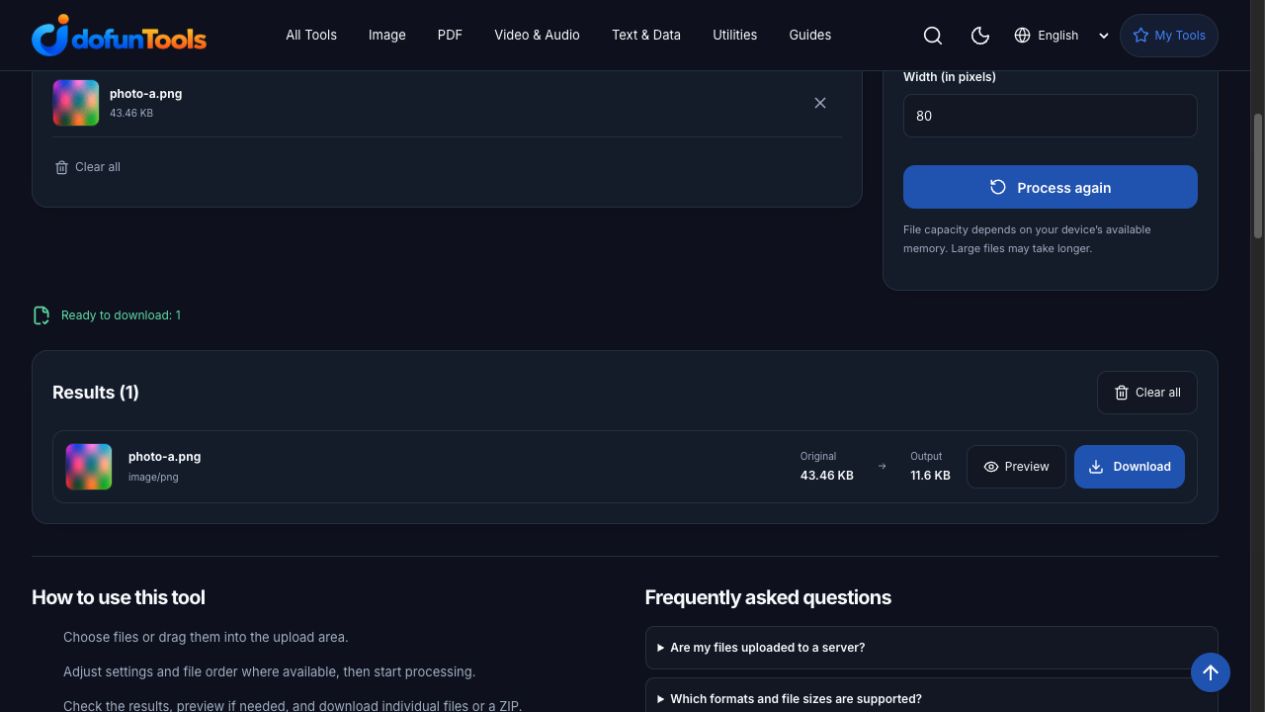
The screenshot shows the English interface. Use the corresponding labels in Chinese when that language is selected.
Repeat the checked example
Use the 160 × 120 PNG pattern, select Pixels, keep aspect ratio enabled and set Width to 80. In our browser check, the downloaded PNG was 80 × 60, preserving its 4:3 ratio. Its size changed from 44,502 to 11,875 bytes. Those byte counts describe this synthetic sample only; other images encode differently.
Work out a proportional target
The rule is target height = original height × target width ÷ original width. For a hypothetical 1200 × 800 image, a width of 600 gives a height of 400. This is a geometry example, not a claim about file size or a measured performance result.
Percentage mode is useful when both dimensions should change together: 50% makes each side half as large, not half as many total pixels. Read the downloaded image’s actual dimensions when exact pixels matter.
When to crop instead
For a square profile photo or a fixed banner ratio, use Crop Image to choose what stays in the frame, then resize the crop. Disabling aspect ratio lets you enter unrelated dimensions, but a circle may become an ellipse and people may look stretched.
For photos, start with a still JPG, PNG or WebP sample. SVG and GIF inputs have format-specific handling, so check the output format and any animation before replacing your original.
Check the output before using it
Open the downloaded image, confirm its width and height, and inspect a recognizable shape. If a website also imposes a byte limit, try Compress Image and inspect that result too. The compressor has its own dimension behavior; the two operations are not interchangeable.
The workflow processes files on this device and may download processing resources. Available memory and input encoding affect whether a file can be processed.
Frequently asked questions
Why does changing the width also change the height?
With aspect ratio enabled, the other dimension follows the original proportions. This helps prevent stretching.
How do I make a rectangular photo square?
Crop to a square first, then resize to the desired pixel size. Resizing alone cannot preserve the entire rectangle and also fill a square without distortion or added margins.
Does resizing reduce the file size?
It can, but pixel dimensions and byte size are different measurements. Output encoding also matters; check the actual downloaded file.